Checking Items
Check orders against their barcodes as you pick and pack with Scan And Ship.
Start picking an order
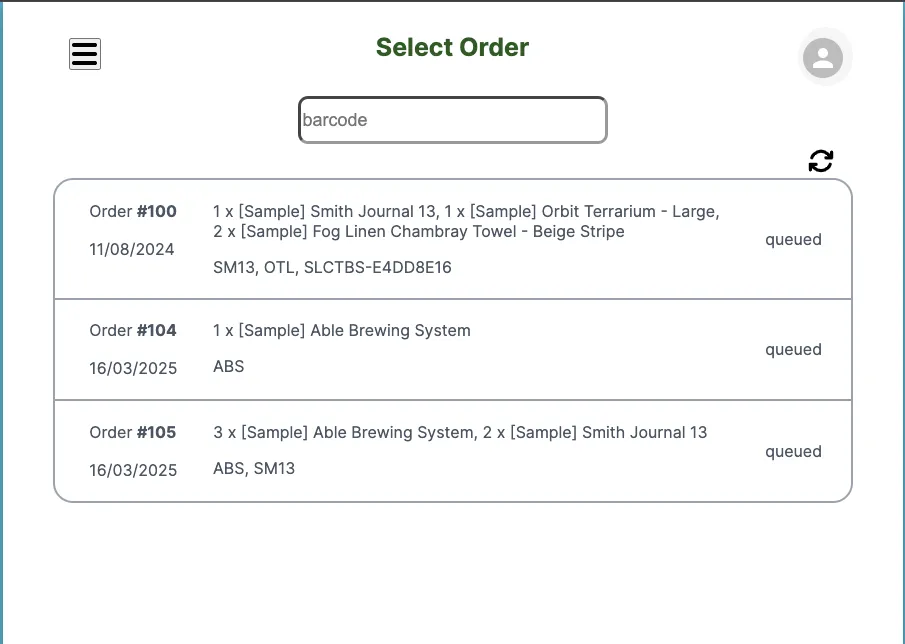
Section titled “Start picking an order”- Select an order from the orders section.
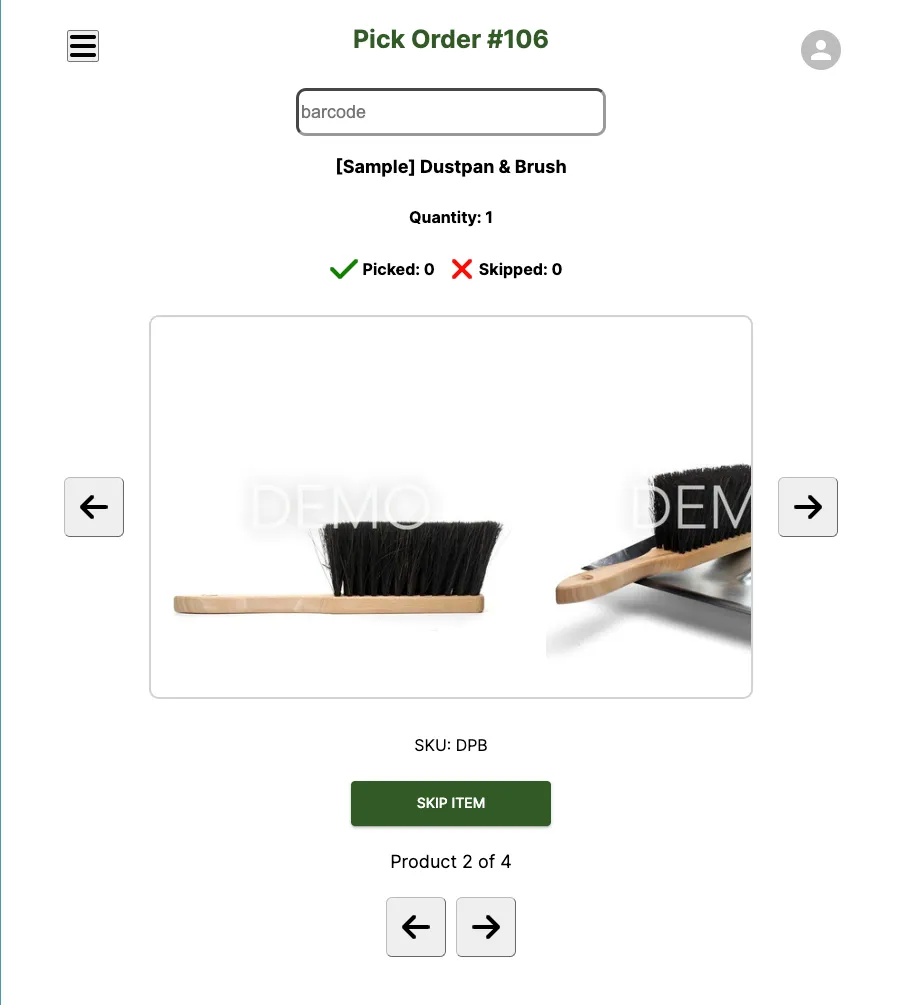
- Once you’ve selected an order, you’ll see the items to pick for that order in the Pick Order section.
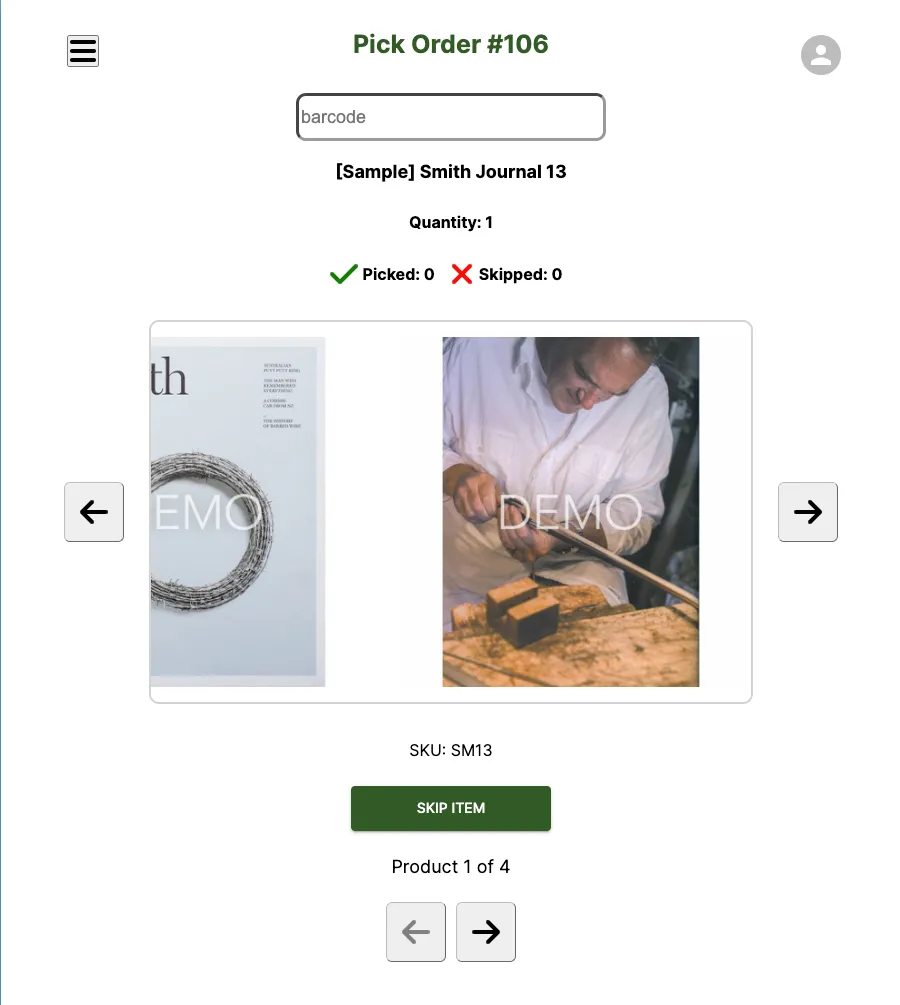
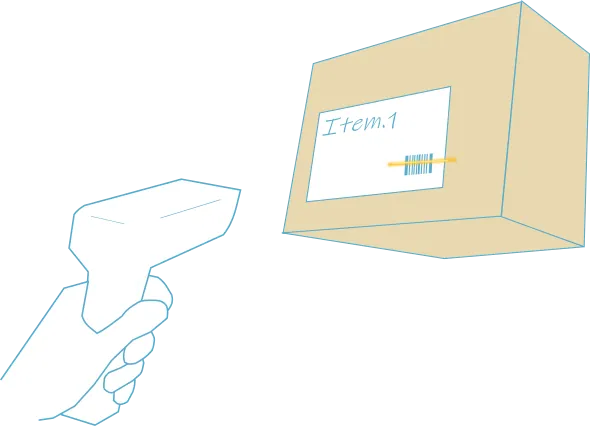
- Scan the items as indicated.
View an order overview
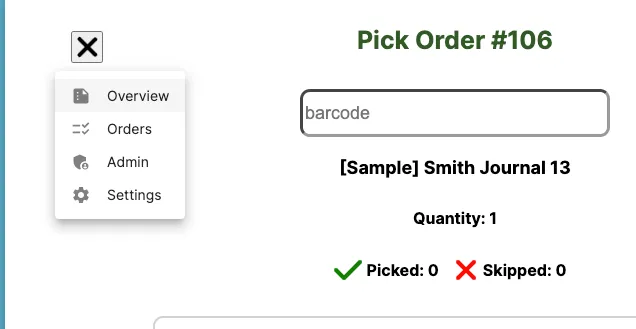
Section titled “View an order overview”- From the Pick Order screen, you can also view an overview of the current order. Select Overview from the nav menu in the top-left corner.
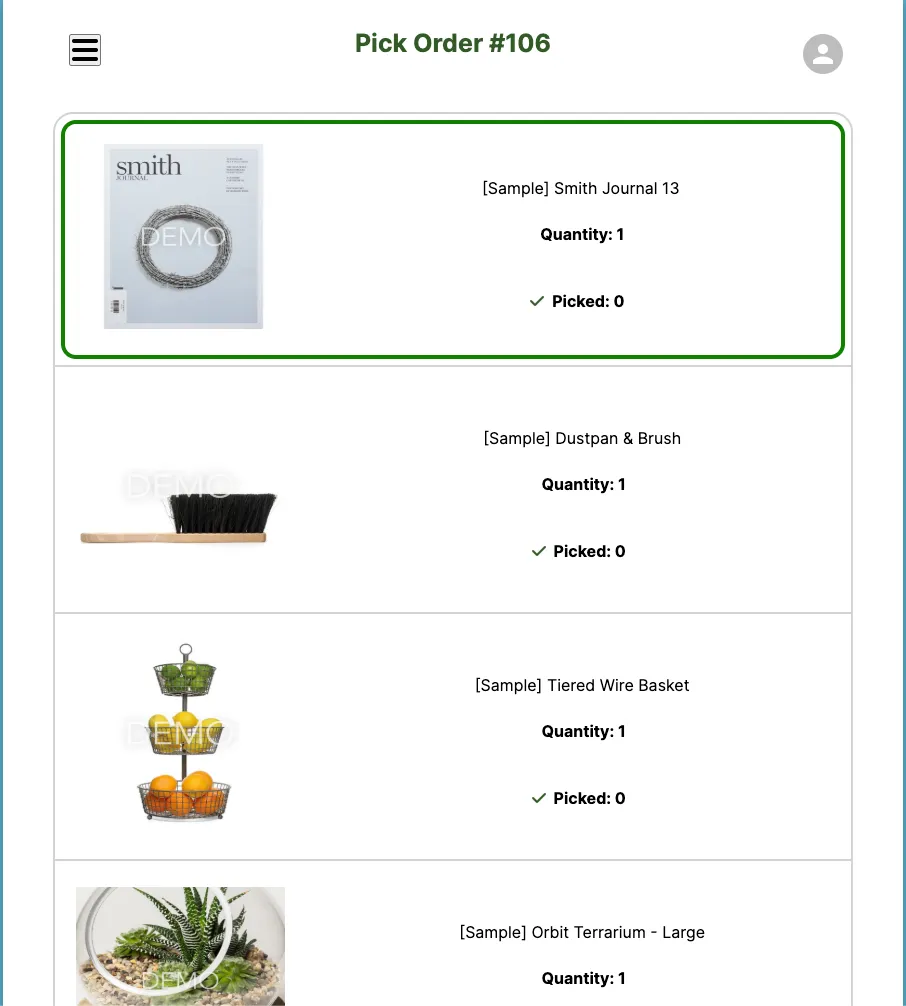
- The Overview screen lists the items in the order and the status of each — whether it has been picked, skipped, or is still outstanding.
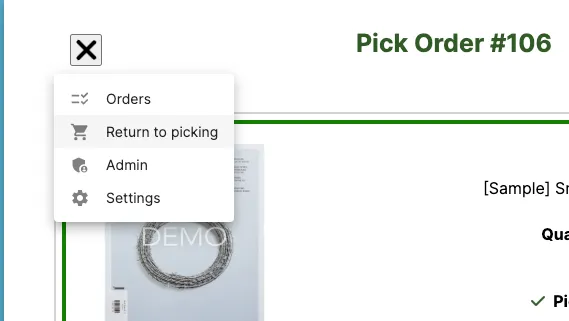
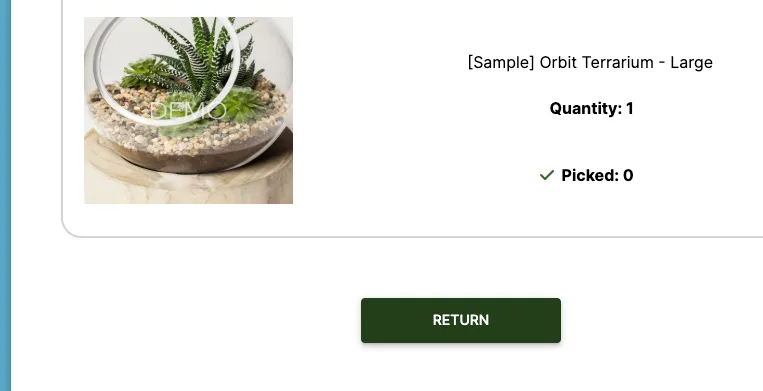
- To return to picking the order, select Return to picking from the nav menu, or select the Return button at the bottom of the overview.
Handle scan errors
Section titled “Handle scan errors”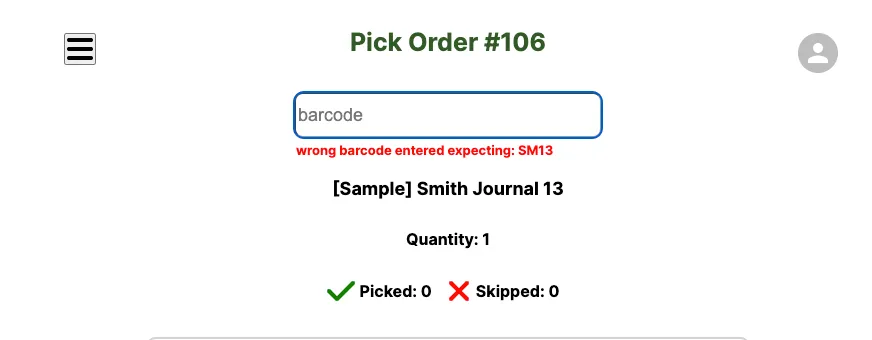
- Once the correct barcode is scanned, the order progresses to the next item to pick.
Complete the order
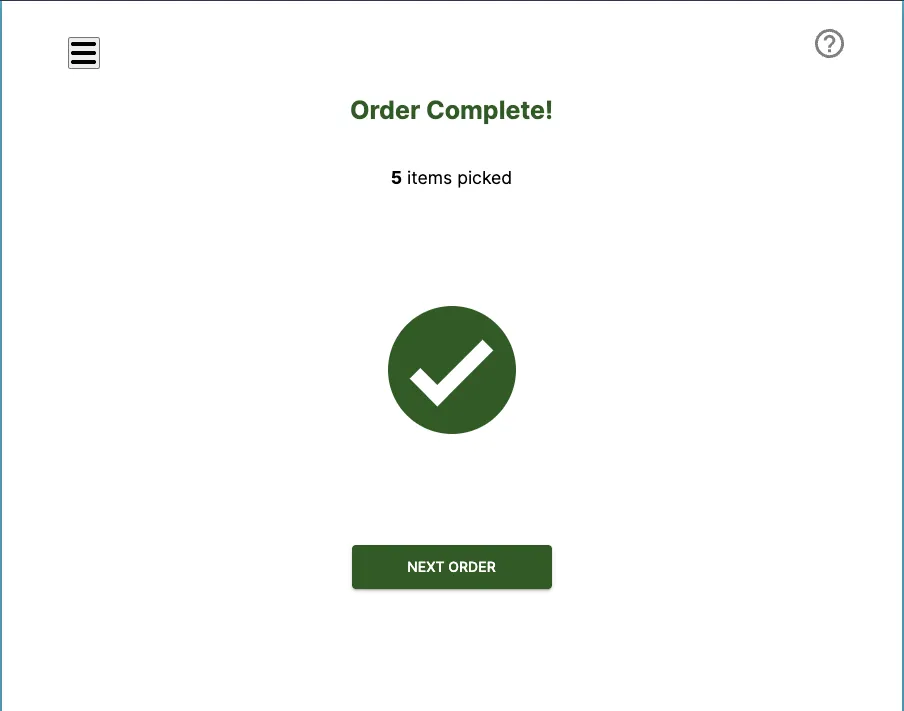
Section titled “Complete the order”- When all items have been picked, you’ll reach the Order Complete screen. It summarizes what was picked and lets you return to the Orders screen to continue picking the next order.