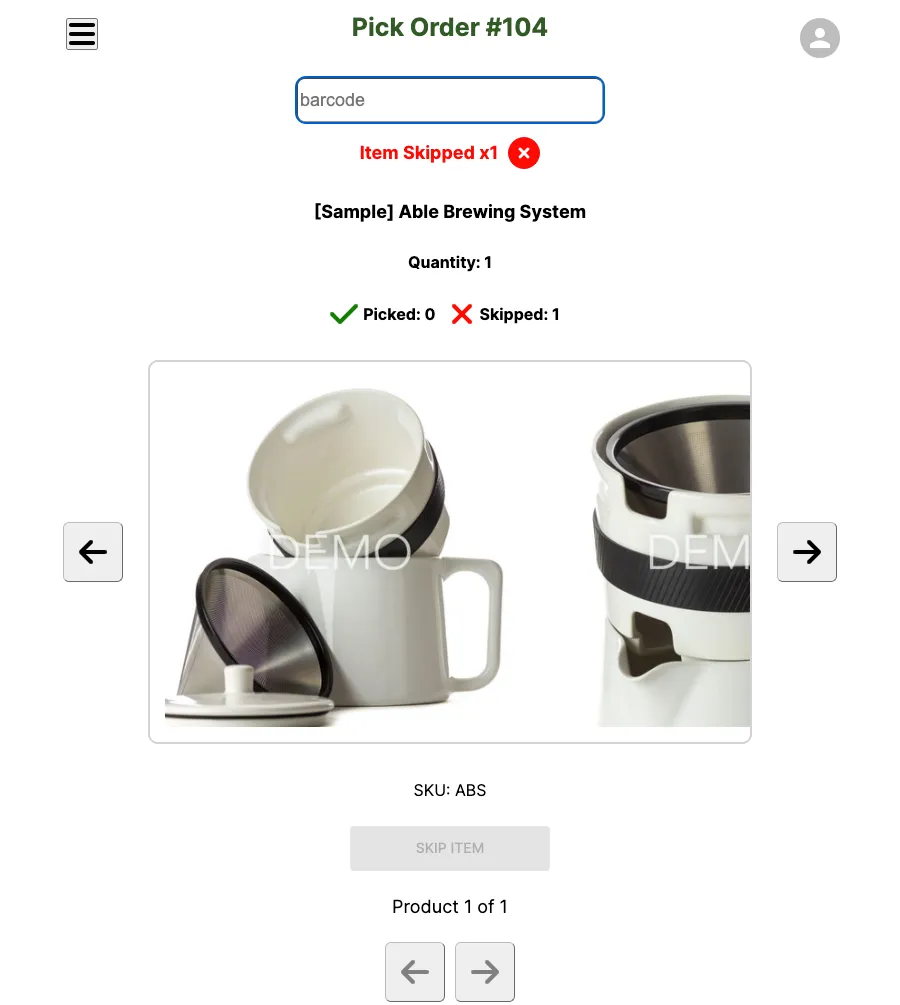
Skipping Items
Skip an item while picking an order — for example, if the item isn’t currently in stock — and come back to it later.
Skip an item
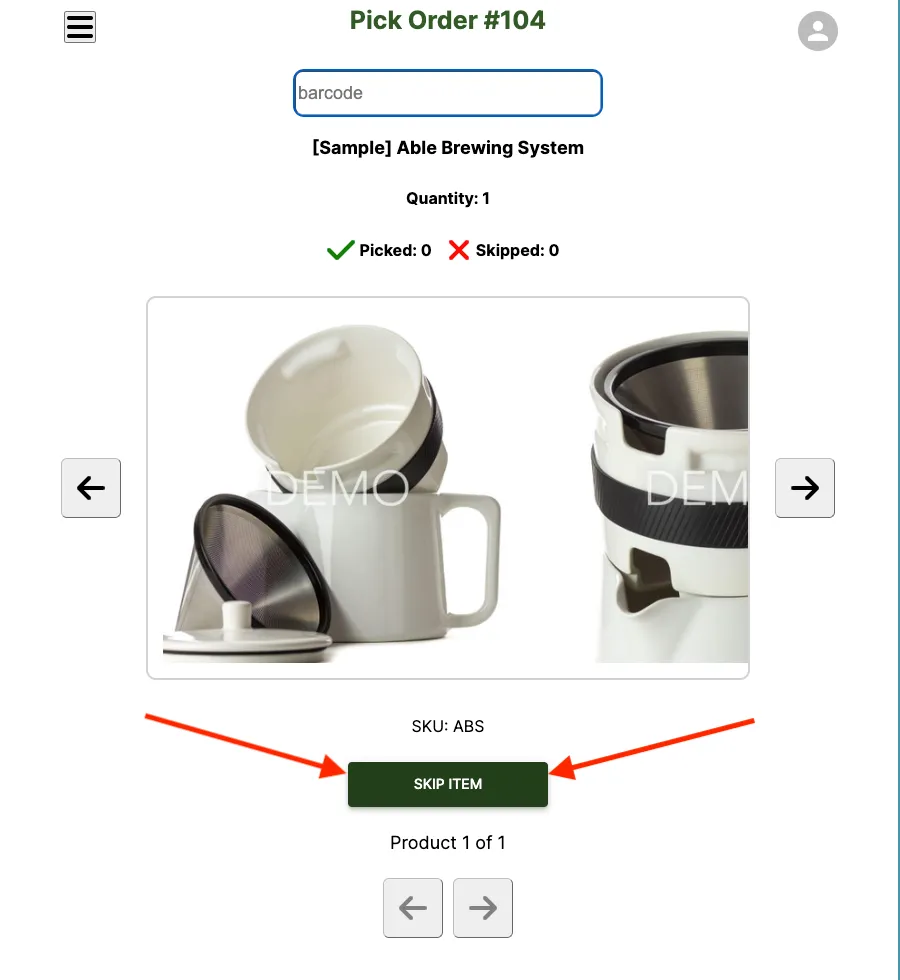
Section titled “Skip an item”- If you need to skip an item while picking an order, select the Skip Item button on the Pick Order screen to mark it as skipped.
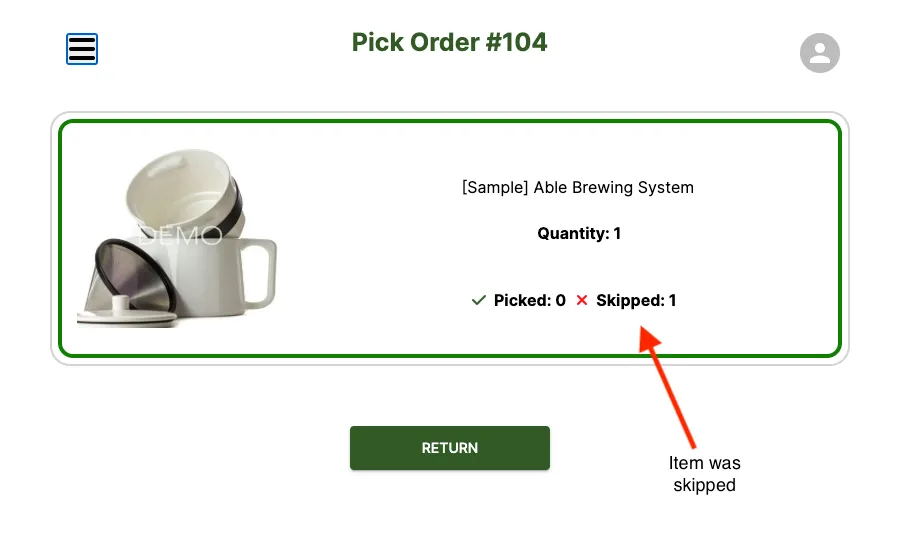
- Once an item is marked as skipped, it’s shown that way in the order overview.
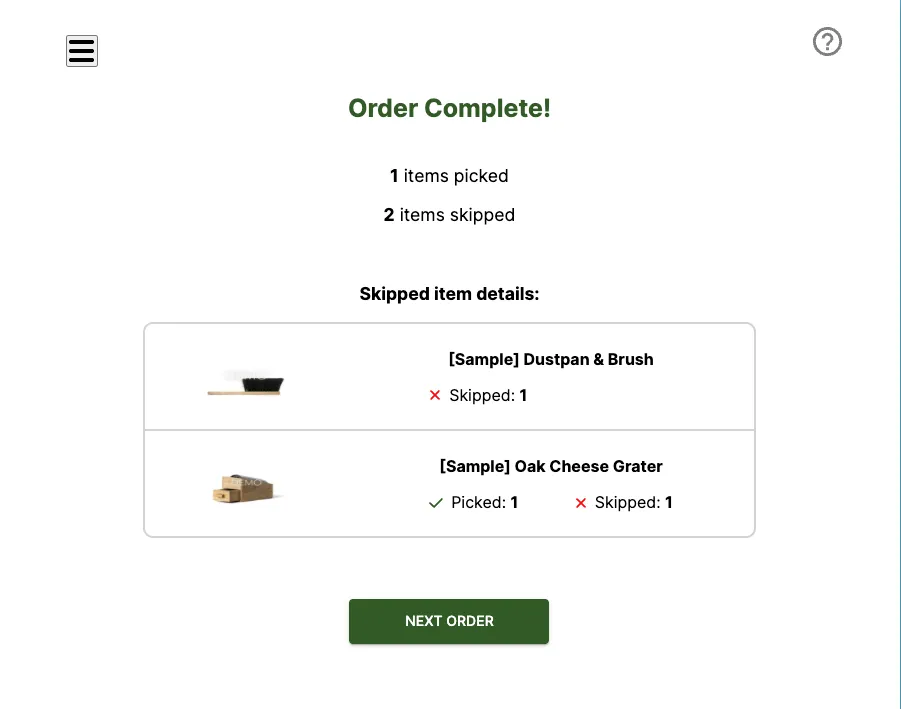
- Once picking is complete for an order with skipped items, you’ll see a summary of the picked and skipped items.
Complete a partially picked order
Section titled “Complete a partially picked order”- Orders that contain any skipped items are shown as Partially Complete in the orders screen.
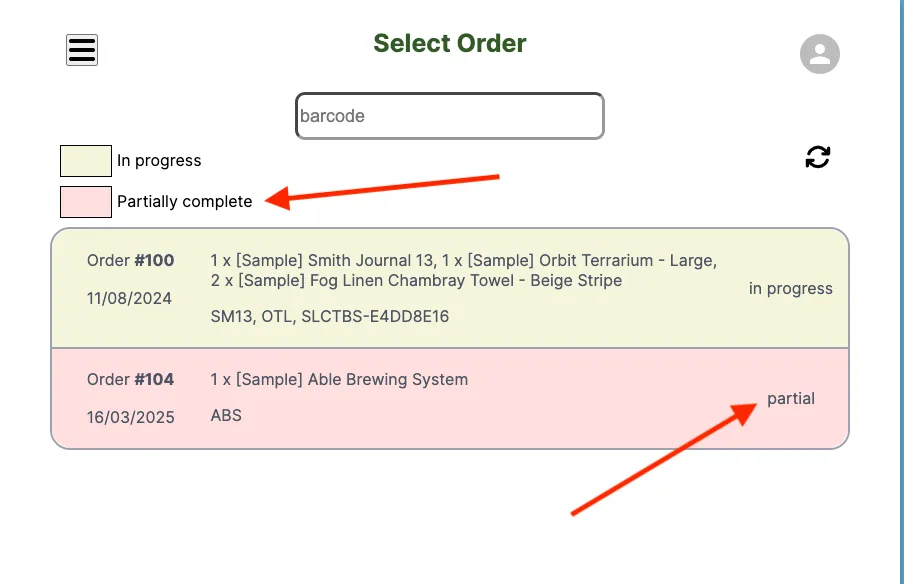
- Selecting a Partially Complete order from the orders screen lets you pick the previously skipped item(s) once they become available, and complete the picking of the order.